A-Spot Current Workflow
A-Spot Current
Workflow
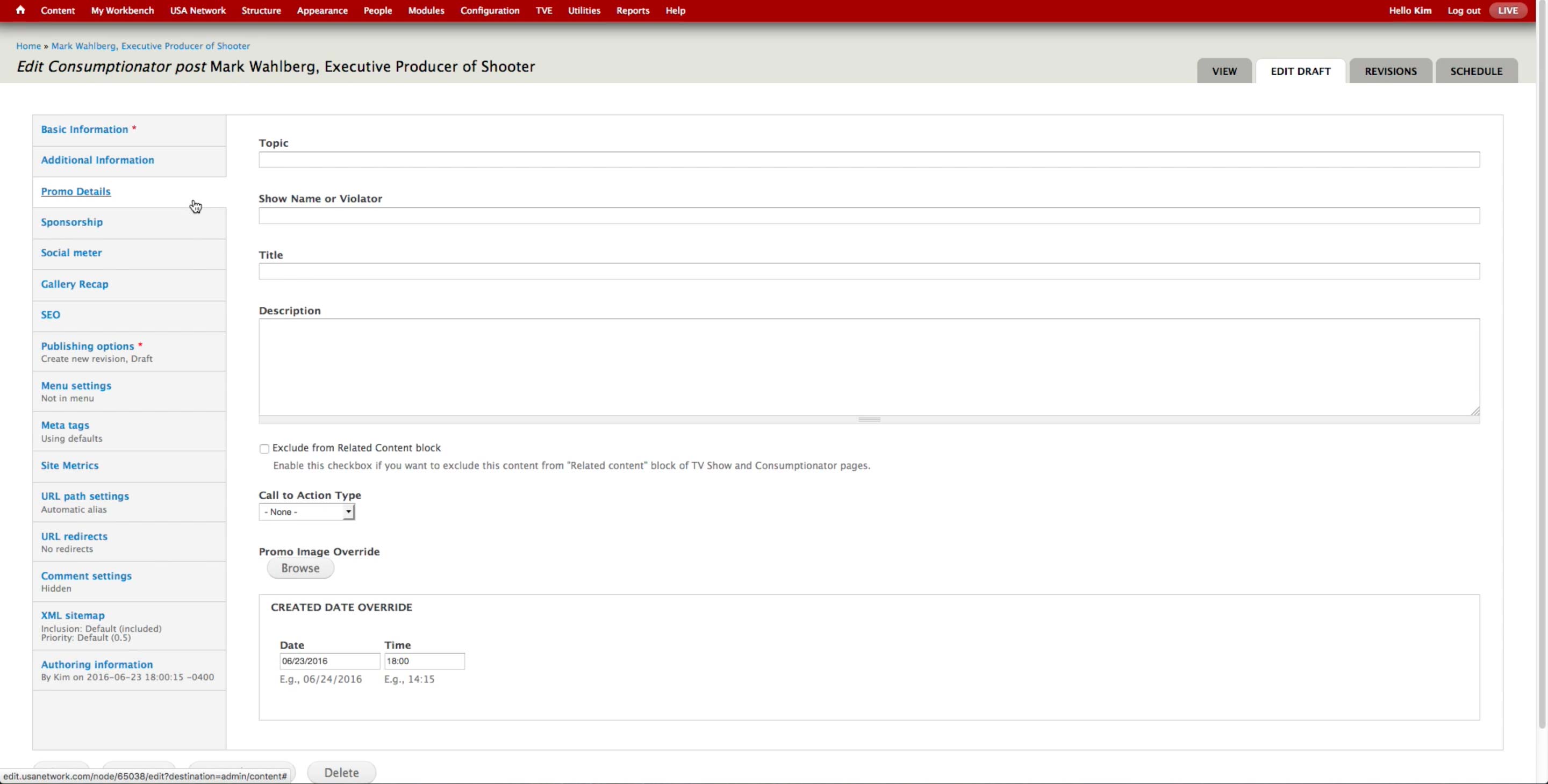
On each Content Type, there is a Promo Details tab to override title, description, and images of the Content when it goes into the Promo spots. However, all the A-spot contents are created manually.
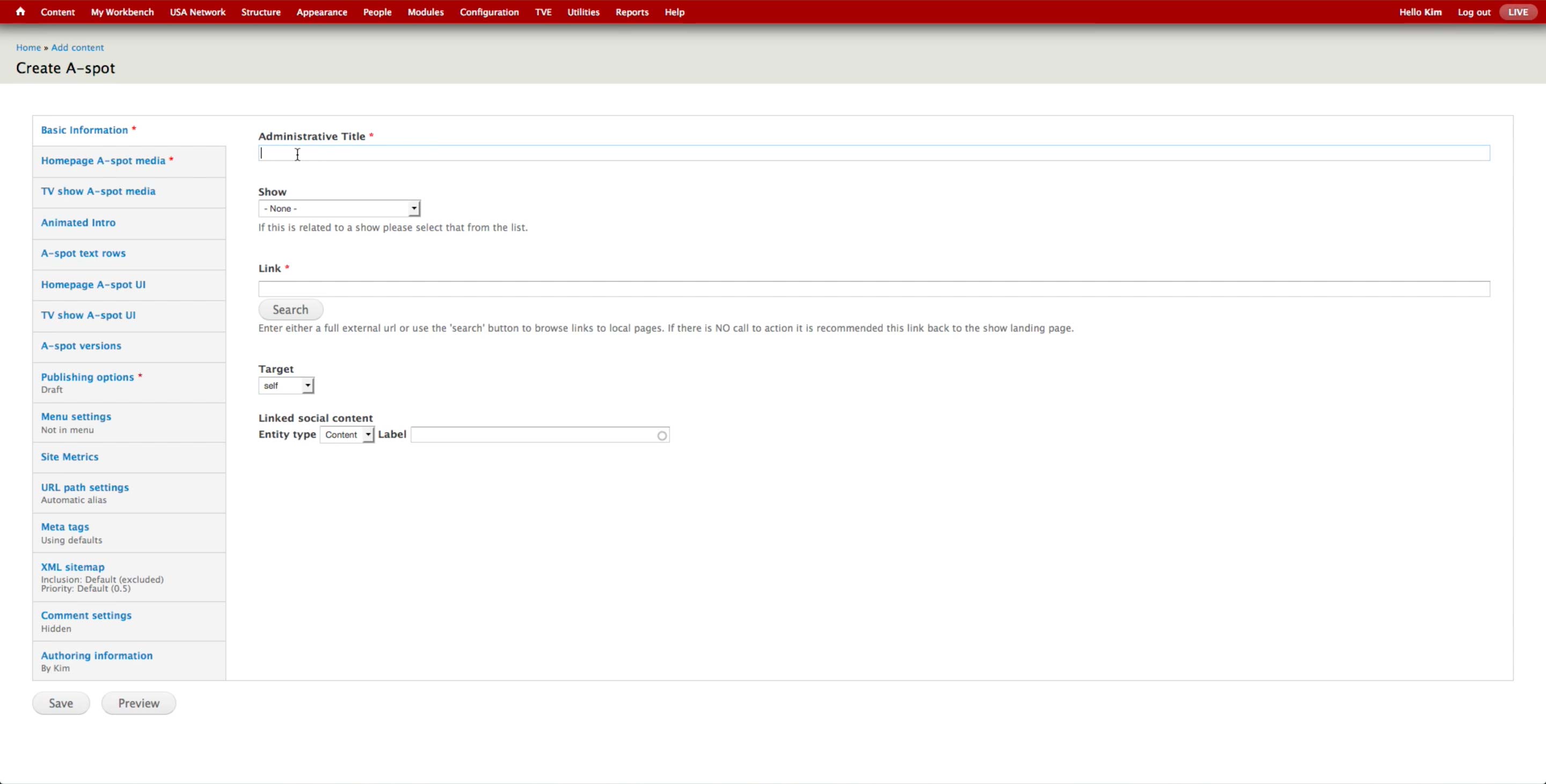
To create an A-spot unit, the producer selects Content > Add Content > A-spot.
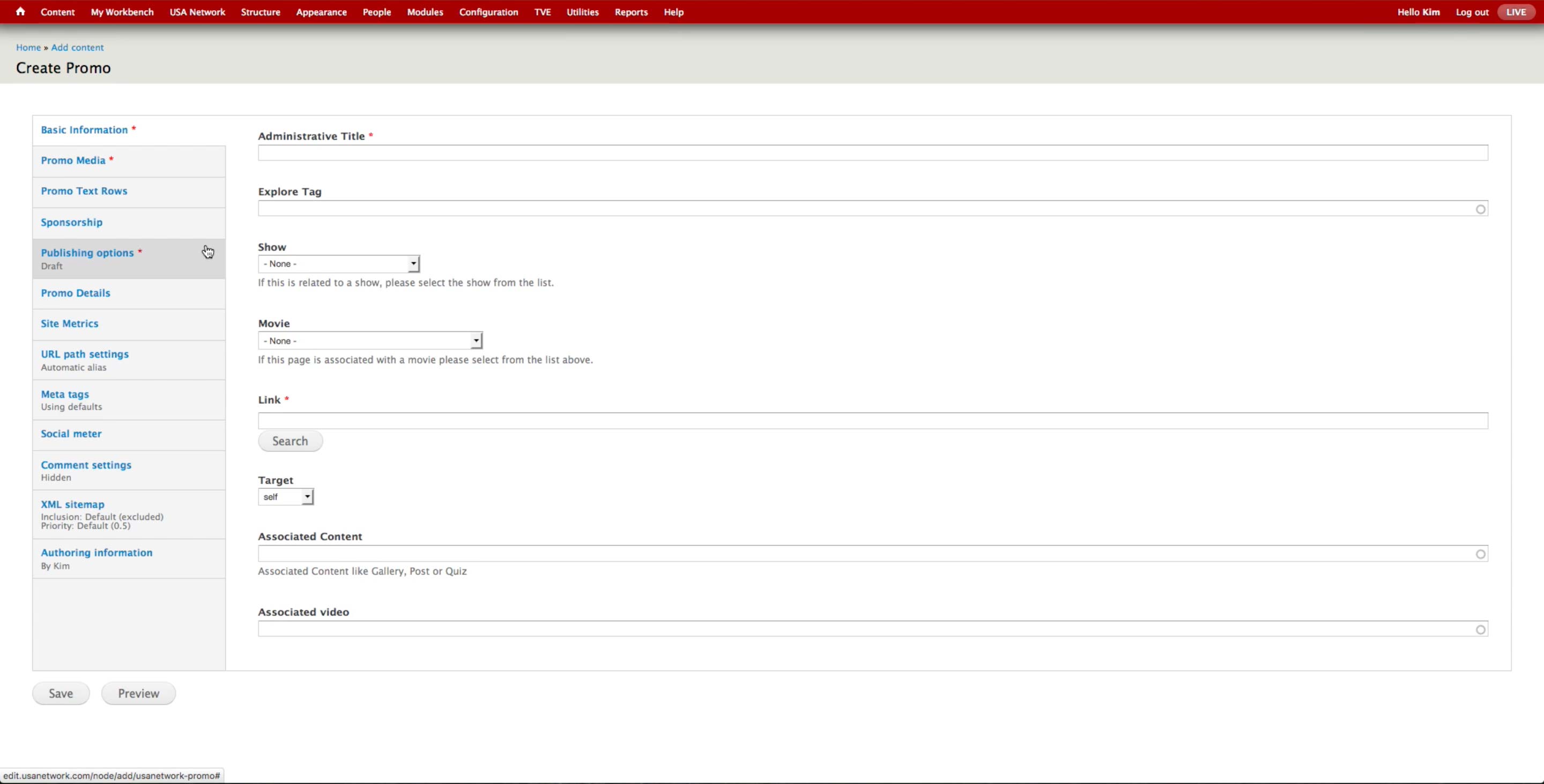
  • Administrative Title: Only for internal search purposes.
  • Show: Association to a show, if any.
  • Link: The overall image’s link, which applies to both Homepage and Landing page. Producer can enter the full URL or use Search button to browse the internal pages.
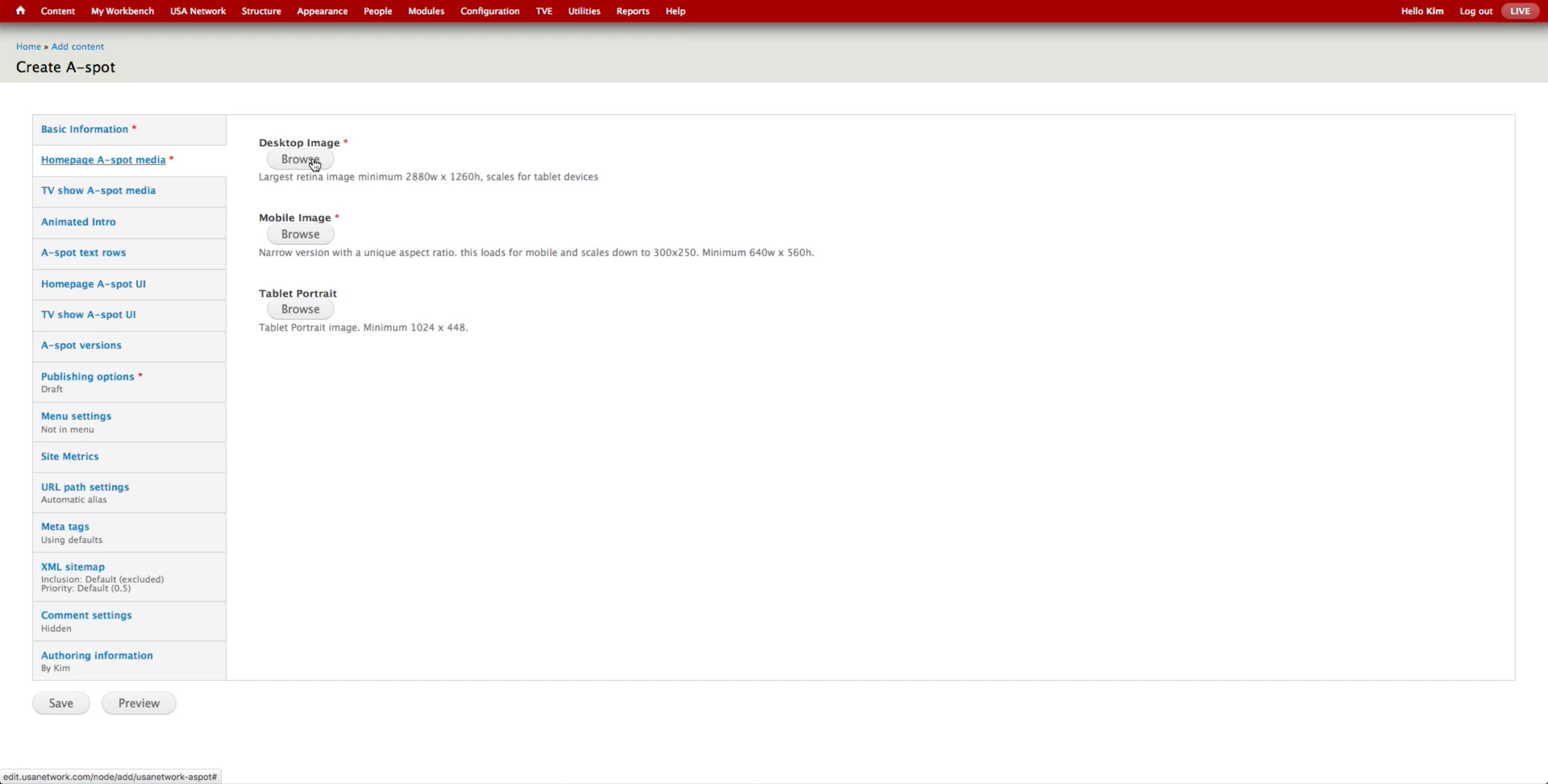
Homepage A-spot Media
The design team provides the three images with different sizes for Homepage, Show Landing, and Mobile. Producer uploads the images to the corresponding fields.
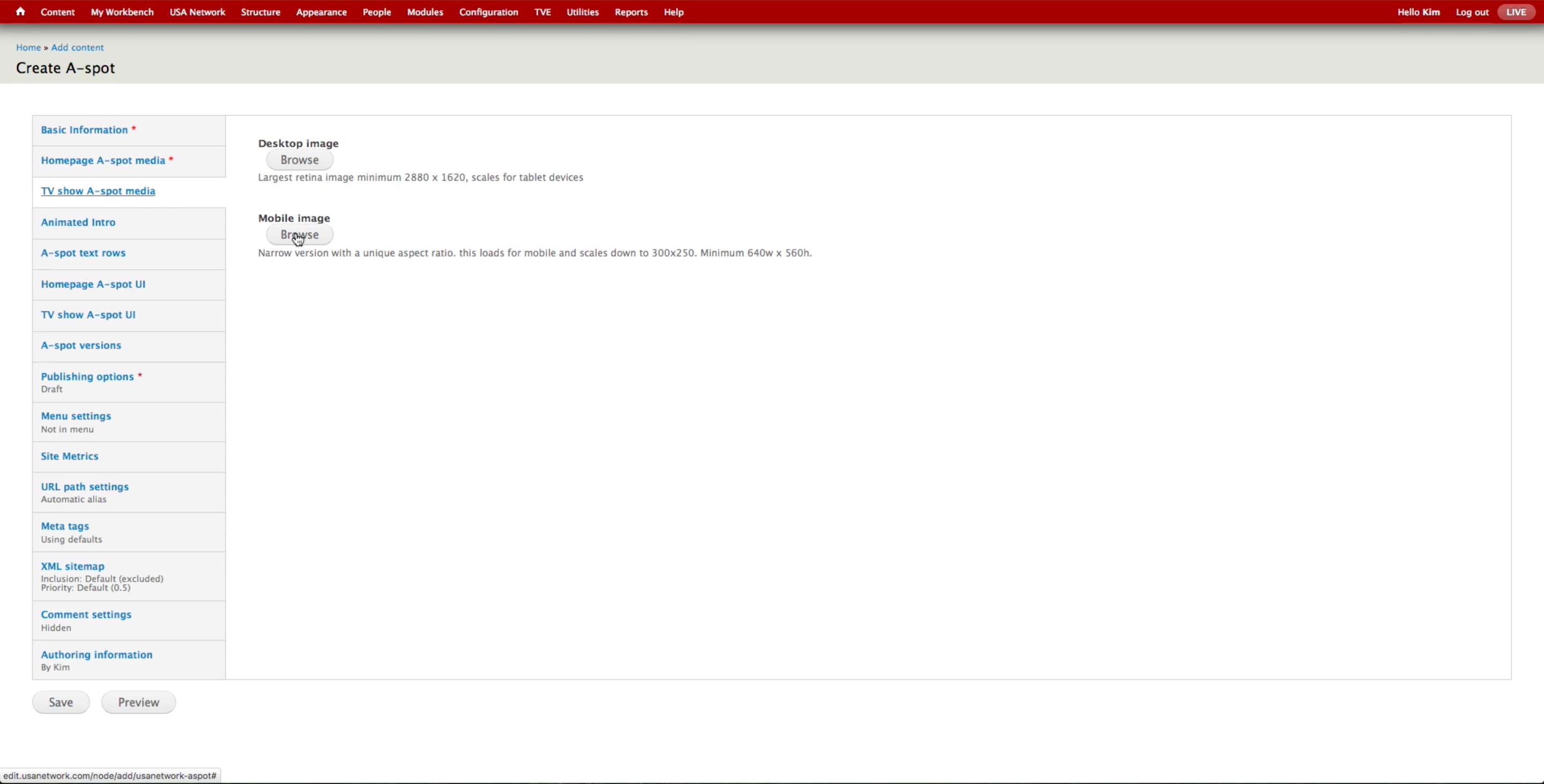
TV Show A-spot Media
The design team provides the three images with different sizes for Homepage, Show Landing, and Mobile. Producer uploads the images to the corresponding fields.
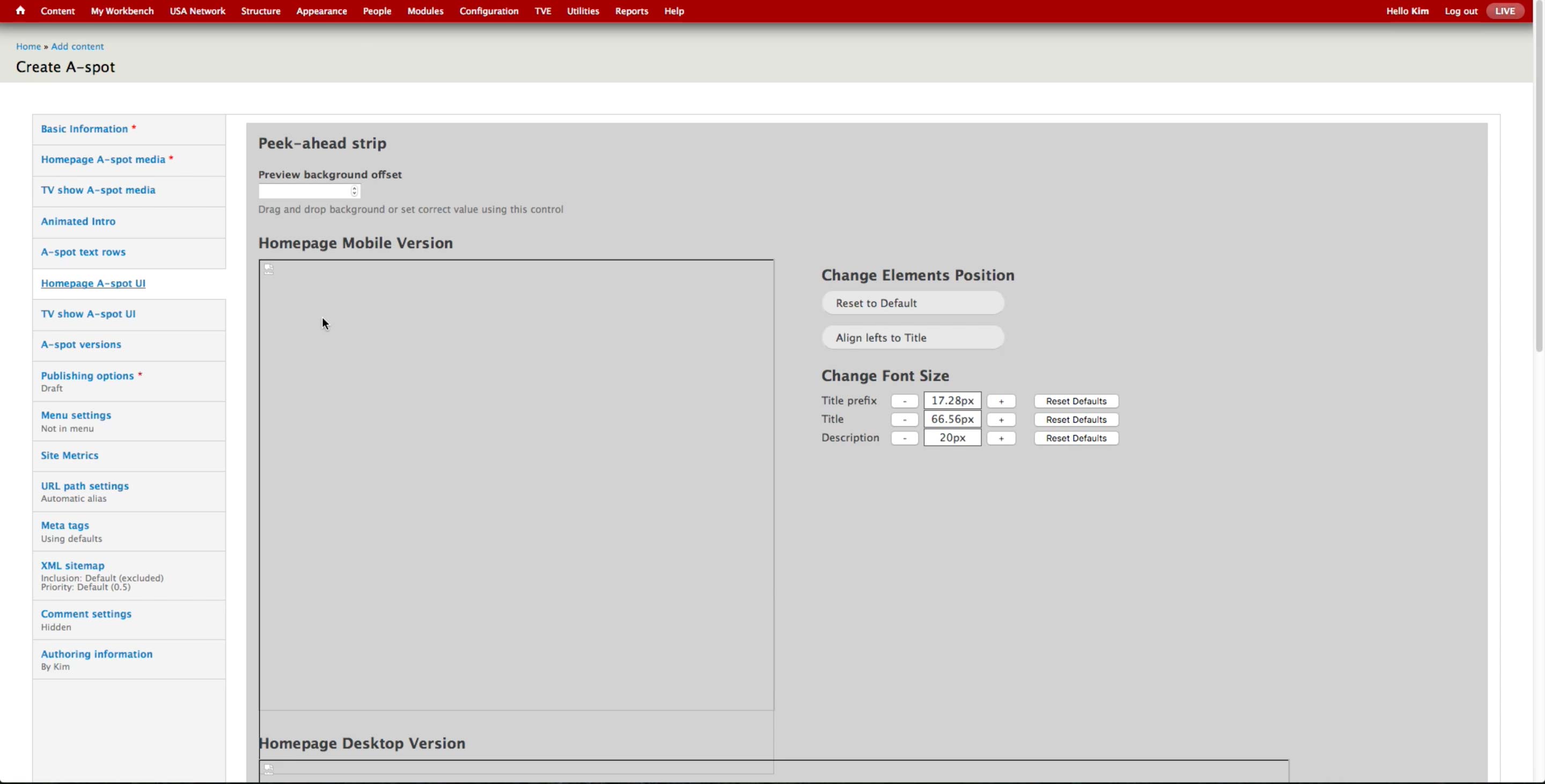
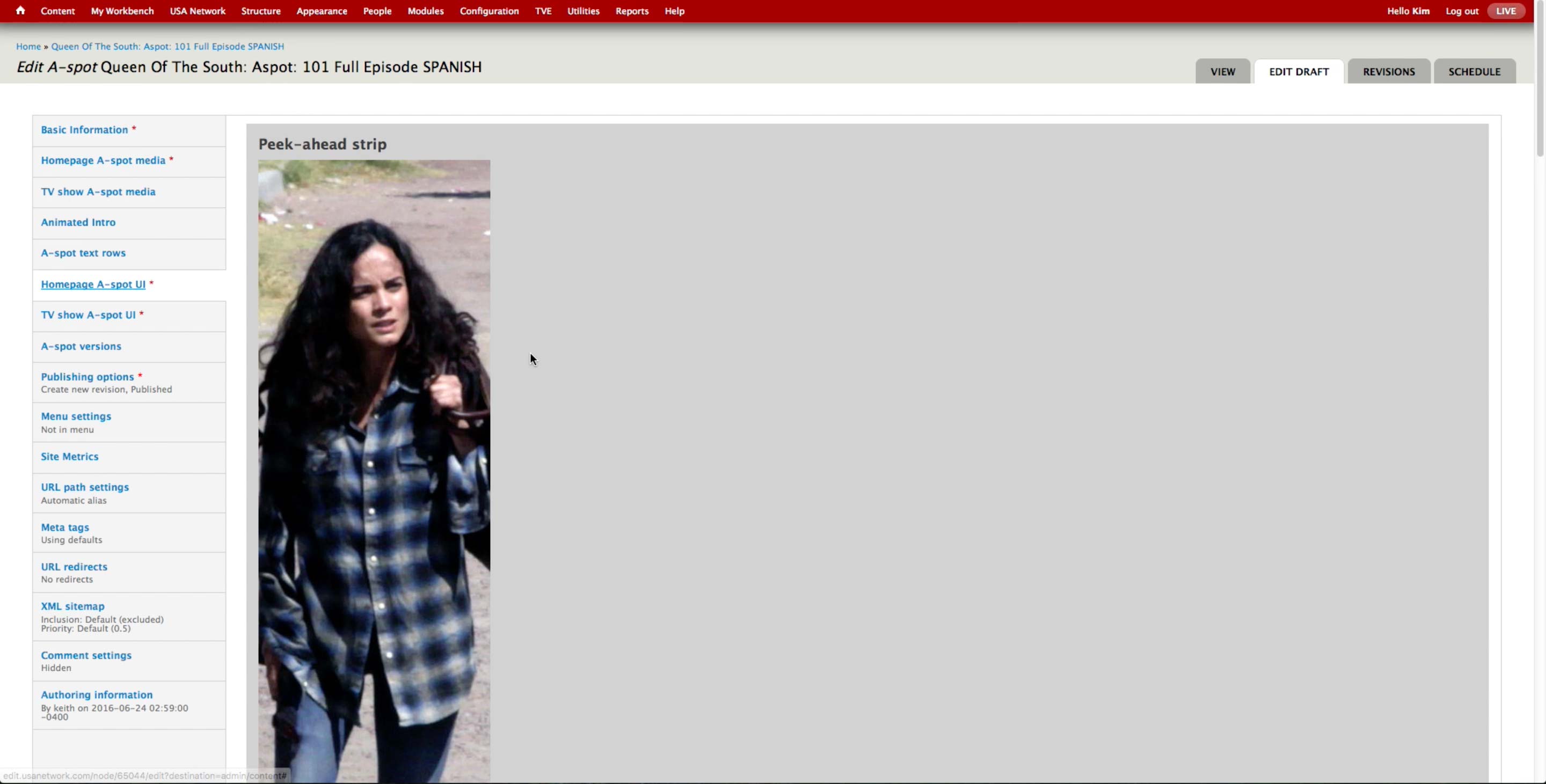
There is an UI to control the front-end appearance of the peek-ahead strip.
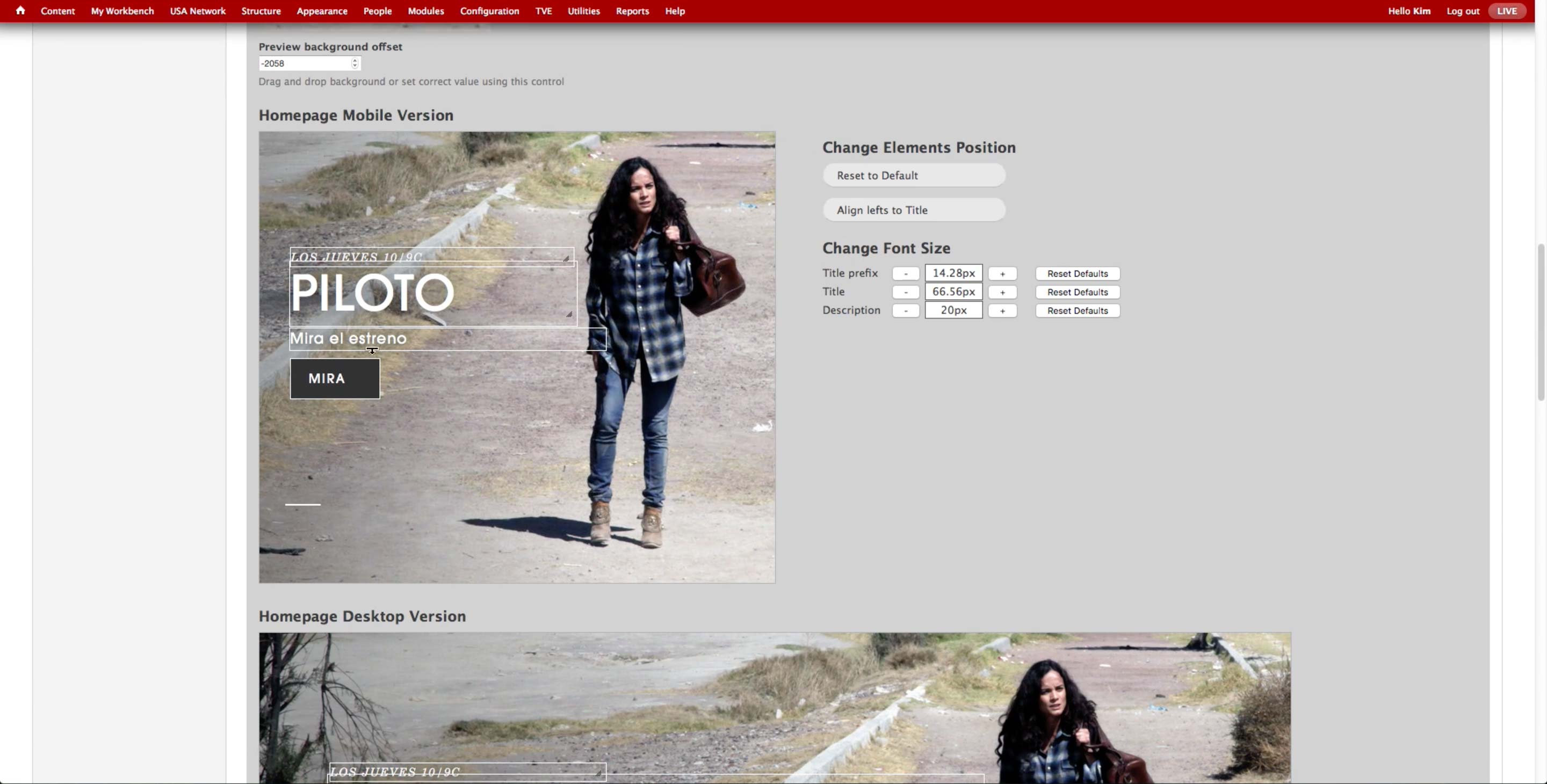
Once the image is uploaded, producer can drag around the preview to set which part of the photo will be used as the peak-ahead. Alternately, they can use the Preview background offset field that appears below the preview and enter the number for the offset.
For each of the uploaded images, producer can visually control the placement and size of the text and call-to-action button on the A-spot.
If the default setting isn’t used due to the long text elements, designers would go back in the CMS to check if the elements are visually pleasing.
At the bottom of the image previews, producer can select/deselect the items to appear on the A-spot.
Below, there are text areas for each item to enter the text that will appear on the A-spot. Producer may add additional call-to-action buttons, up to 3. They usually create up to 2, as the front-end UI doesn’t look good with 3.
The label can be as long as 128 characters, and URL is either the URL after the base URL or external. Even if the content is not published, the A-Spots are created beforehand as the URLs are predictable. However, it doesn’t prevent the producer from making typo and publish the A-spot with a broken link.

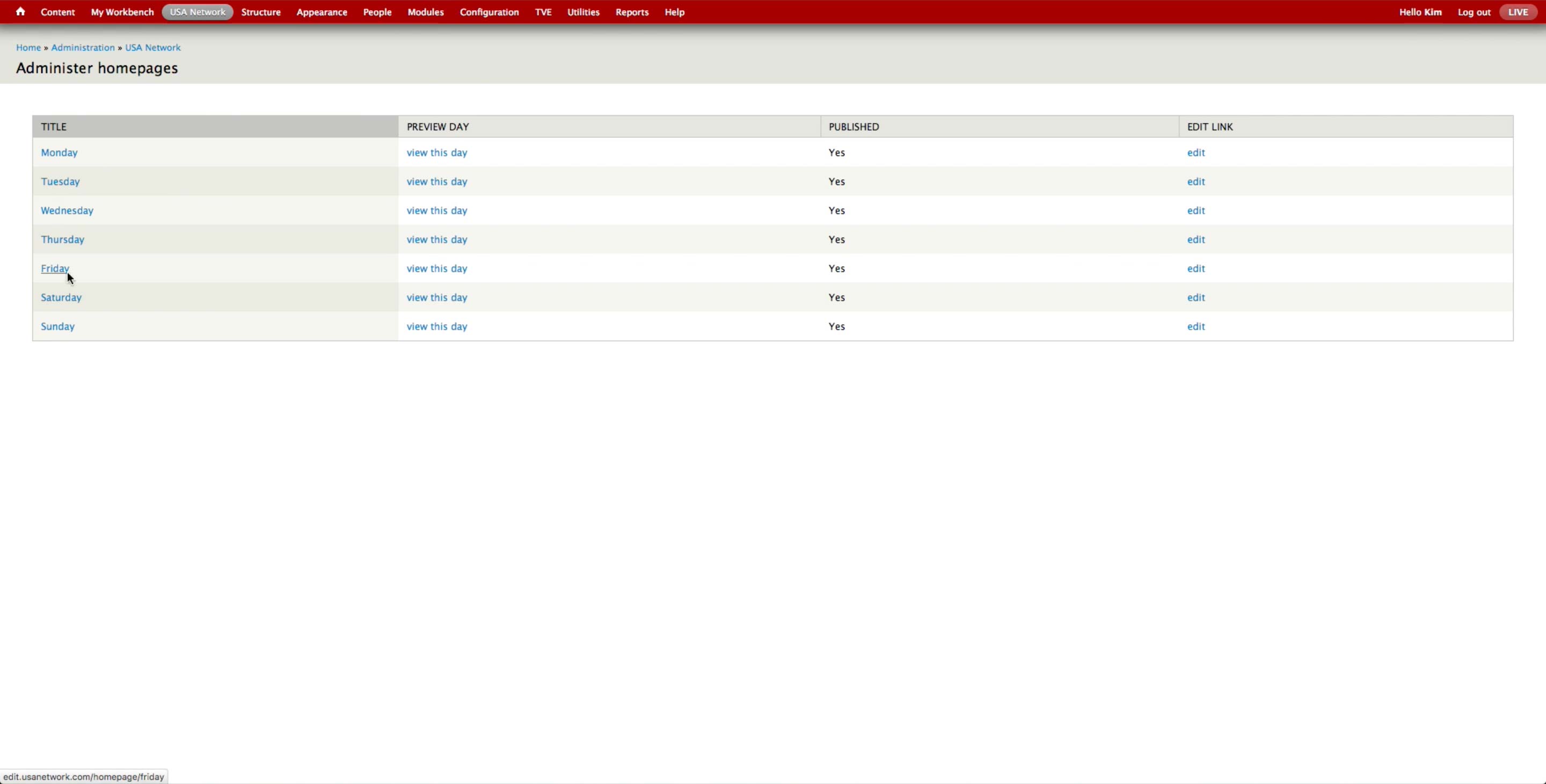
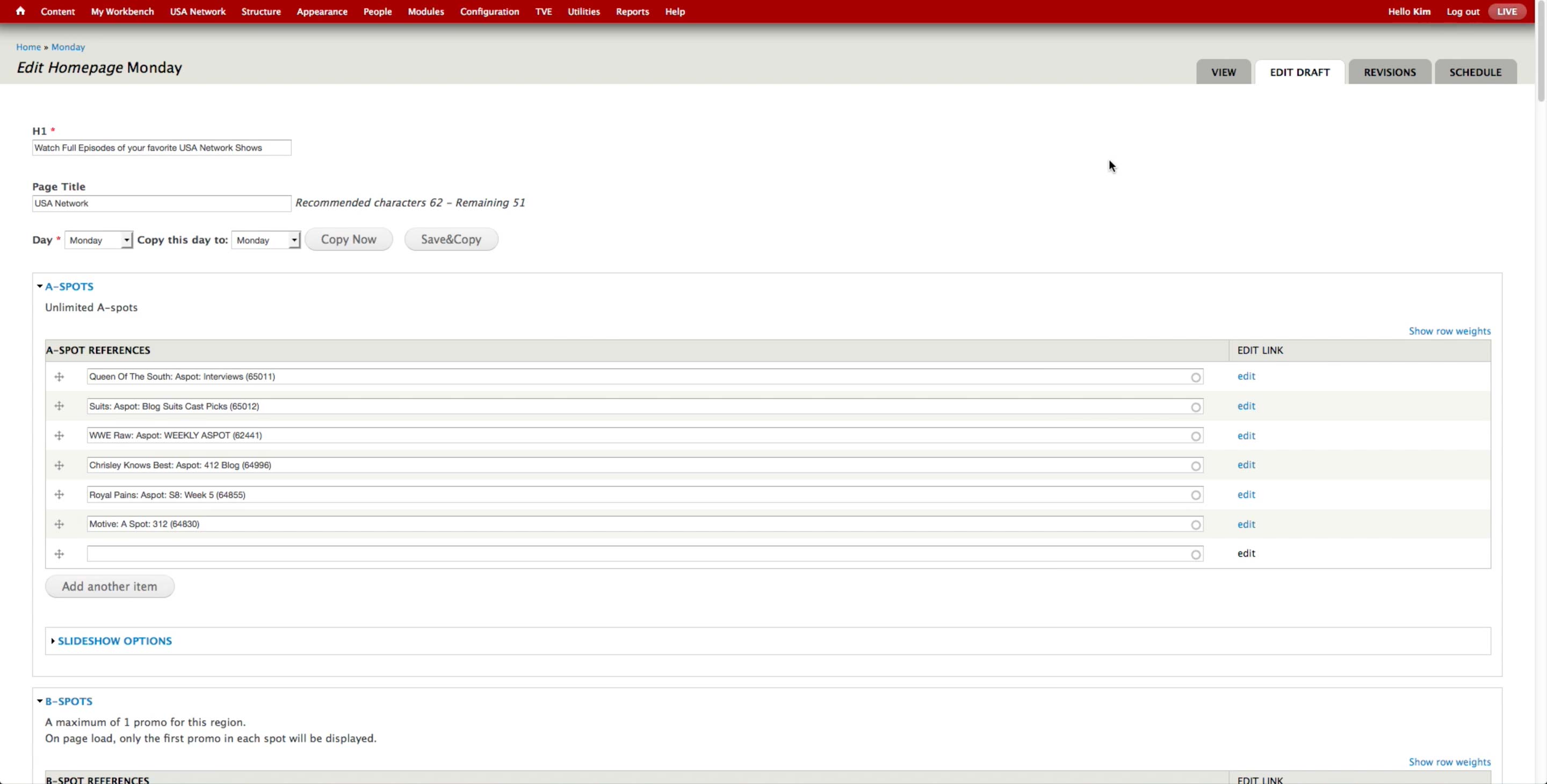
Once all the A-spots are created, the producer goes to USA Network > Administer USA Homepage and hit edit button of the corresponding day.
In the A-spot References field, producer can search with the administrative title of the A-spot. They use a set format ([SHOW NAME]: Aspot: [TITLE OF THE A-SPOT]) to name the A-spots so they are easy to retrieve.
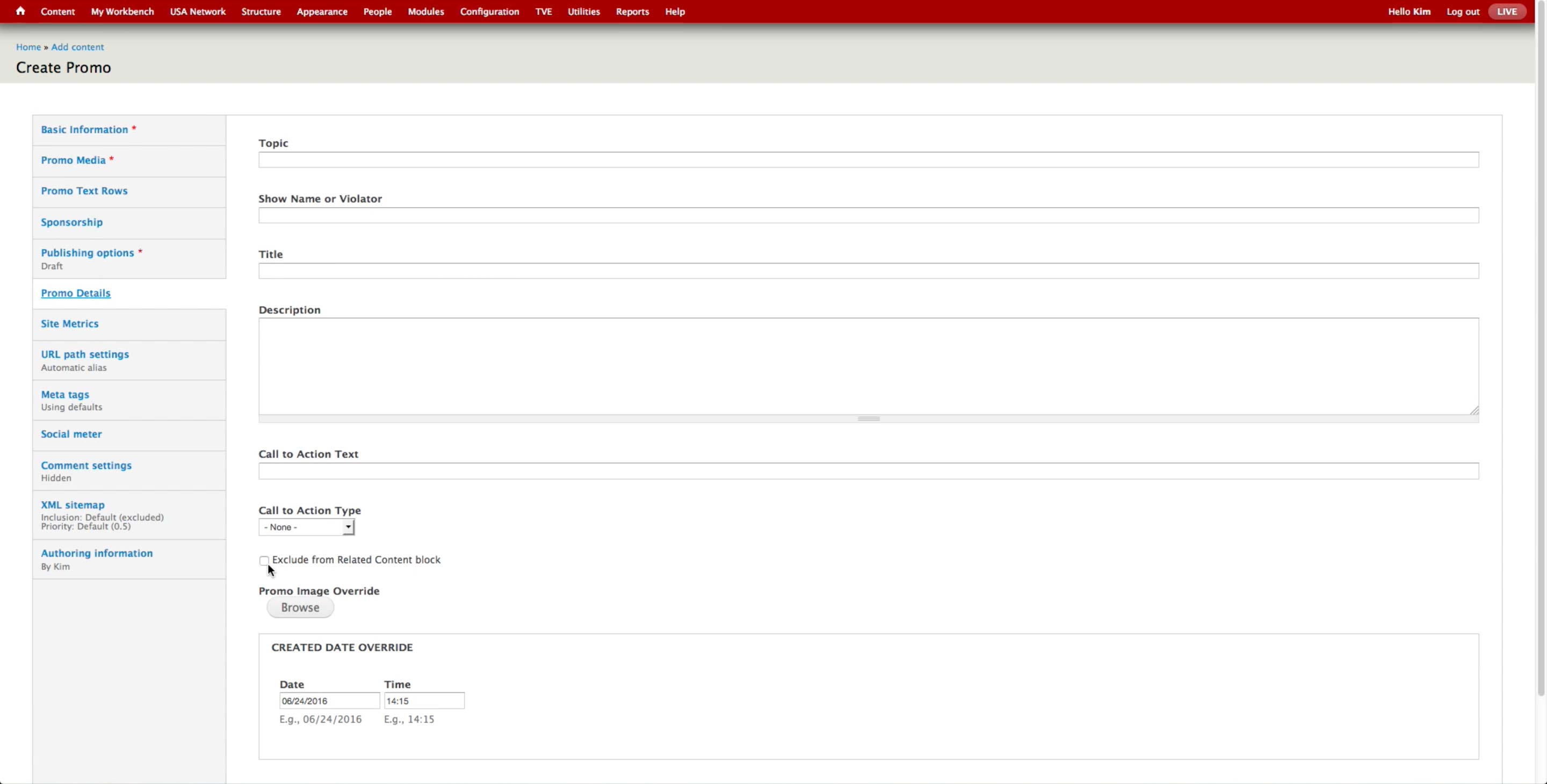
When promoting content on other spots, producer can create a Promo content. Currently, they are trying to use the Promo fields attached to each of the content and reduce the number of Promo content types as much as possible. They are currently using Promo for animated GIFs or external links.
After you publish the Promo content type, it automatically appears in the Latest Content block. In order to prevent that, producer has to check the Exclude from Related Content block option.
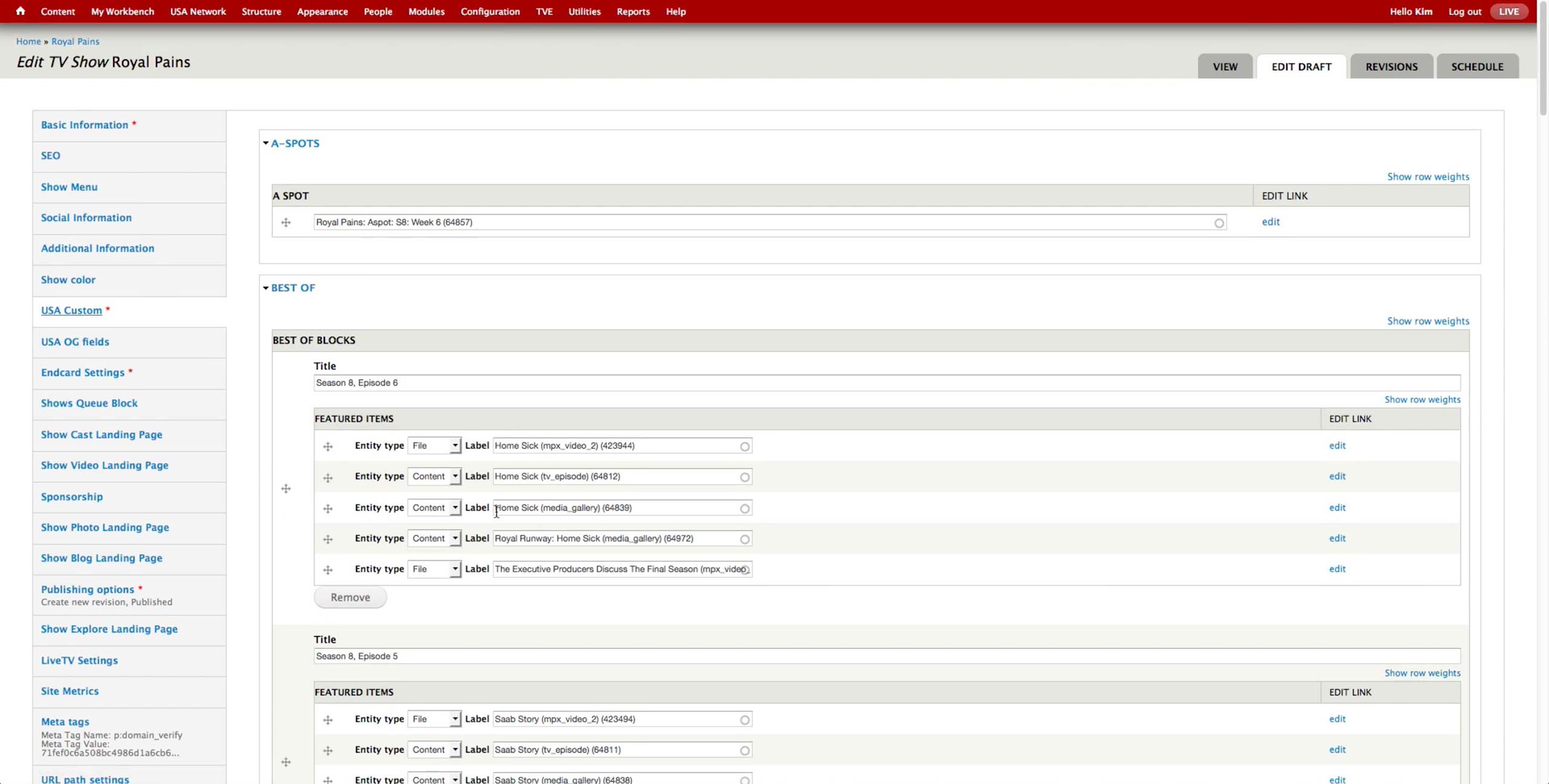
Once all the content’s promo fields are filled and Promo content is created, producer goes to the corresponding show content and goes to USA Custom tab, where all the shelves for promoted content lives.
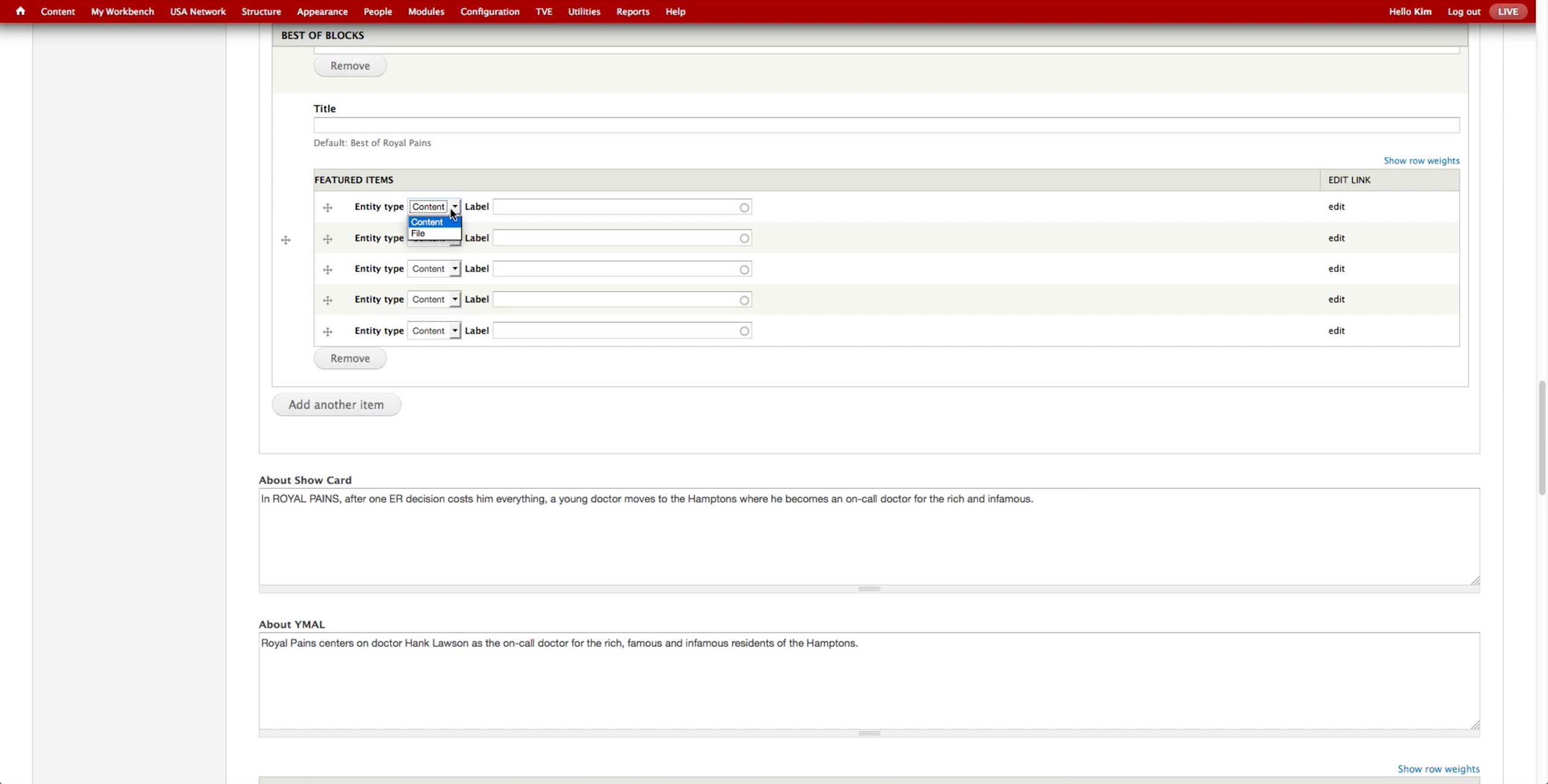
Then, she selects the entity type (Content or File) and can search for the items to promote using their Administrative Title. If the promoted video expires, it automatically comes out of the page.
There are 2 types of video files: mpx_video_1 and mpx_video_2. The former is the USA Network MPX account with short form videos that are on the website, and the latter the TVE account, which holds all the long-form videos and any short-forms that are available in the OTT apps.